If you’ve been wondering whether Kindle accepts EPUB files, the answer is yes. Amazon now supports EPUB through its Send to Kindle tools, so you can move an EPUB into your Kindle library without relying on the old MOBI workaround. The important nuance is that Amazon processes the file during delivery rather than having Kindle act like a raw EPUB reader. In practice, though, that distinction matters far less than it used to.
For most readers, the real question is simpler: can you get an EPUB onto your Kindle quickly and read it without hassle? Yes, you can. Amazon currently gives you three practical routes: the web uploader, email, and the Send to Kindle app.
Quick answer
Yes, Kindle takes EPUB through Amazon’s official tools. The easiest ways to do it are:
- Upload the file on the Send to Kindle website
- Email it to your Kindle address
- Use the Send to Kindle app on desktop or mobile
Does Kindle support EPUB?
Yes, and this is where a lot of older advice is now outdated. Amazon’s Send to Kindle service lists EPUB as a supported file type, and Amazon KDP also says it accepts EPUB files that meet the Kindle Publishing Guidelines. Amazon further recommends validating EPUB files with Kindle Previewer before upload if you are publishing or checking a file you created yourself.
That means the answer to searches like can kindle use epub, does kindle accept epub, and does kindle read epub is effectively yes for normal users. You no longer need to treat EPUB as a second-class format in the Kindle ecosystem.
Method 1: Use the Send to Kindle website
For most people, this is the easiest option.
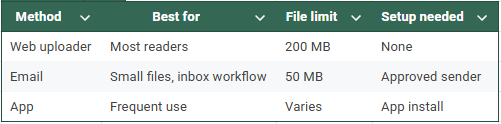
If you just want the fastest way to move a book from your computer to your Kindle library, start here. Amazon’s web uploader supports EPUB and currently allows files up to 200 MB, which also makes it the best choice for larger documents.
Step 1: Open Send to Kindle
Go to Amazon’s Send to Kindle page and sign in to your account. This is the same browser-based workflow Amazon uses for personal document delivery.
Step 2: Upload your EPUB file
Drag the file into the upload area or select it manually from your computer. This is the cleanest answer to how to add epub to kindle when you do not want to mess with extra setup.
Step 3: Choose your device or app
Select the Kindle device or Kindle app where you want the file delivered. Amazon sends personal documents to your Kindle library so they can sync across supported devices and apps on your account.
Step 4: Send it and sync
Once Amazon finishes processing the file, it should appear in your library. If it does not show up right away, refresh or sync your device.
Why this method is best for most readers
It is simple, official, and forgiving. There is no approved-sender list to manage, and the file limit is much more generous than email. For most readers, this is the best answer to epub to kindle.
Method 2: Email the EPUB to your Kindle
Email is still a very solid option, especially if you prefer sending files from your inbox instead of opening a separate upload page.
Amazon gives each Kindle device or app its own Send to Kindle email address. You send the file there from an approved email account, and Amazon adds it to your Kindle library.
Step 1: Find your Kindle email address
1: Log in to your Amazon account and go to Content & Devices
2: Select the Devices tab
3: Find your Kindle in the list and click on it
4: Copy the Kindle email address shown in the device details. It will end in “@kindle.com”
5: Save that address, since you’ll need it when sending your EPUB by email
Step 2: Approve the email address you will send from
Before emailing a file, make sure your sender address is on Amazon’s Approved Personal Document Email List. This is one of the most common reasons emailed documents fail to arrive.
Step 3: Attach the EPUB and send it
Create a new email, attach your EPUB file, and send it to your Kindle address. Amazon’s email workflow supports EPUB and other common document formats.
Step 4: Keep your Kindle online and sync
Your Kindle device or app needs an internet connection for delivery to complete. Once the file is processed, it will appear in your library the next time the device syncs.
Additional notes for the email method
Amazon says you can send up to 25 attachments in one email, use up to 15 approved emailaddresses, and send a total of 50 MB or less per email. It also supports ZIP attachments, which Amazon can unpack before delivery. Beyond EPUB, the email workflow also supports formats including DOC, DOCX, HTML, HTM, RTF, TXT, JPEG, JPG, GIF, PNG, BMP, and PDF.
When email makes the most sense
Choose this method if the file is already in your inbox, you like a familiar workflow, or you occasionally send documents from multiple devices. It is a very practical option for send epub to kindle queries, especially when the file is comfortably under the email size limit.
Method 3: Use the Send to Kindle app
If you send files often, the app-based workflow can be the most convenient.
Amazon offers Send to Kindle tools for desktop and mobile. The Windows app explicitly lists EPUB among its supported file types, and Amazon’s iOS page says you can import content from your phone or tablet into your library with the Kindle app.
Step 1: Install or open the Send to Kindle workflow
On desktop, install the Send to Kindle app and sign in with your Amazon account. On mobile, open the file and use the share/import flow if Kindle is available as a destination on your device.
Step 2: Add your EPUB file
On a computer, that usually means dragging the file into the app. On mobile, it typically means sharing the file from your downloads or files app into Kindle.
Step 3: Send and let it sync
Once the document is sent, Amazon processes it just like the web and email methods, then places it in your library for synced reading.
Who should use this method
This is best for people who do this regularly. If you often save review copies, manuscripts, or long-form documents for later reading, the app feels more seamless than repeating the browser or email workflow every time.
Which method should you use?
Use the web uploader if you want the easiest all-around option. Use email if you prefer a familiar inbox workflow and your file fits the email rules. Use the app if you send documents often enough that convenience matters. For most readers, the web uploader remains the best default.
Do you need to convert EPUB to Kindle first?
Usually, no.
For normal reading, Amazon’s current workflow already handles EPUB through Send to Kindle. For publishing, KDP accepts EPUB manuscripts that meet its guidelines, and Amazon recommends checking them with Kindle Previewer before upload. Manual conversion is mostly useful when you are fixing formatting issues or doing more controlled publishing prep.
Troubleshooting: why your file is not showing up
If an EPUB does not appear on your Kindle, the problem is usually one of four things: the sending address is not approved, the file is still processing, the device has not synced, or the EPUB itself has formatting issues. Amazon’s help pages specifically point to the approved sender list and sync/delivery workflow, while KDP recommends Previewer for checking how a file will render.
That is why a failed attempt does not usually mean “Kindle does not support EPUB.” More often, it means the delivery settings or the file itself need a quick fix.
FAQ
Does Kindle take EPUB?
Yes. Amazon’s Send to Kindle service lists EPUB as a supported file type.
Can Kindle read EPUB files?
Yes, in practical use. Amazon accepts EPUB through Send to Kindle and delivers it to your Kindle library.
How do I add EPUB to Kindle?
The easiest way is to use the Send to Kindle website, upload the file, choose your destination, and sync your device.
How do I send EPUB to Kindle by email?
Find your Kindle email address, approve your sender email, attach the EPUB, and send it to your Kindle address.
Do I need to convert EPUB first?
Usually not. Amazon’s current workflow handles EPUB delivery for normal reading, and KDP accepts EPUB for publishing.
What file size limits matter most?
For web uploads, Amazon lists a 200 MB maximum. For email, Amazon lists 50 MB total per email.
Final thoughts
The old confusion around Kindle and EPUB mostly comes from outdated advice. Today, getting an EPUB onto your Kindle is straightforward: use the web uploader for simplicity, email for familiarity, or the app for convenience. For most readers, the hardest part is no longer the format, it is just choosing the method that fits how you already work.
Leave a Reply